Live coding: putting Report 1 on GitHub
Session 4 — Applied Data Science 2026

This is the document from the live coding — what we did in front of the room, plus the parts that are worth having in writing and are not worth watching.
1 Where we start
An ordinary RStudio project — the one you submitted last week, after you rendered it:
report1_Musterfrau_Anna/
├── report1_Musterfrau_Anna.Rproj
├── report1.qmd
├── report1.html          ← the render made this
├── report1_files/        ← and this
└── data/
    └── hotels-barcelona.csv
Open the .Rproj. Look at the top-right pane: Environment, History, Connections. No Git.
That is not a setting you have switched off. There is no history in this folder yet, so there is nothing for the tab to show.
Git in RStudio attaches to a project, not to a file. This is the same promise session 3 made for here(): the .Rproj marks the top of the thing, and both here() and Git build on it. One more reason the .Rproj is not optional.
2 The four places, and the words for them
Git moves your work between four places. Every verb in this session is a move from one to the next, and each place has a name you will meet in error messages.
| Where | What it holds | |
|---|---|---|
| 1 | Working files | Your folder as it is right now — what Finder shows you |
| 2 | The staging area | What you have picked out for the next commit |
| 3 | Your history | Every commit you have made, on this laptop |
| 4 | The remote | The copy on GitHub |
The following four terms are important because they are what the documentation and the error messages use:
The index. Git’s own name for the staging area. “Staged”, “the index” and “the cache” all mean the same thing — which is why the command to un-track a file is
git rm --cached, mentioned in Section 4.HEAD. The commit you are standing on: the most recent one in your history, and the thing your working files are compared against. Every time you commit, HEAD moves forward to the commit you just made. That is all you need from it in this course.1
The remote. Any copy of your repository that lives somewhere else. Ours is on GitHub.
origin. Just the name of that remote. Git needs to call it something, andoriginis the default it picks — sooriginin a message means “the copy on GitHub”, nothing more.
In the Git tab, each row has a Staged checkbox, then a Status column, then the Path. The Status column is two icon slots wide, and the two slots mean different things:
| Slot | Compares | Answers |
|---|---|---|
| left | staged against HEAD | what a commit right now would record |
| right | your working files against staged | what you have changed but not picked out |
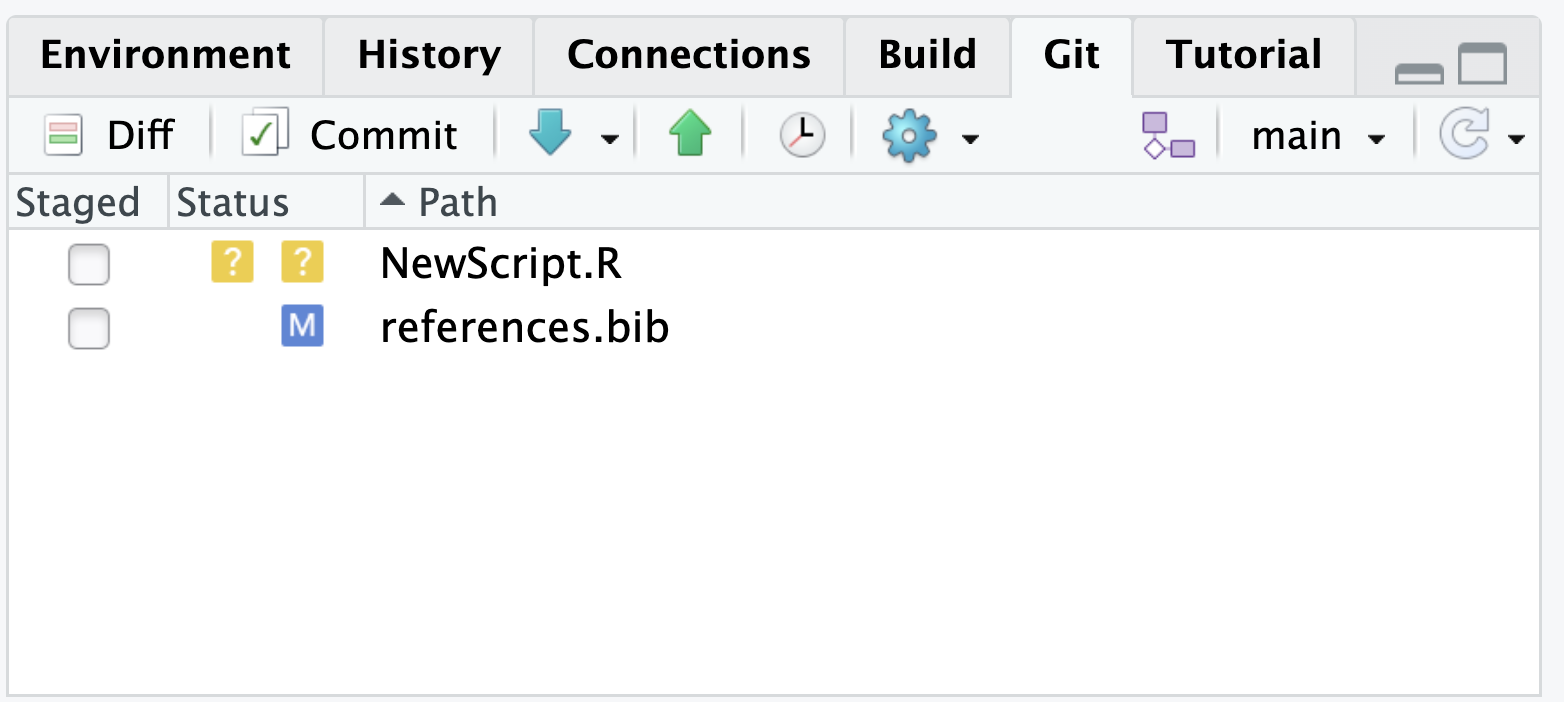
In the screenshot above, NewScript.R is untracked — a yellow ? in both slots, because Git has never seen it in either place. references.bib has a blue M in the right slot only: it is tracked, you changed it, and you have not staged that change yet. Stage it and the M moves to the left slot.
A file you edit, stage, and then edit again shows a mark in both slots at once — which is the clearest proof that staging is a real, separate place rather than a formality.
HEAD~1, detached HEAD, git reset, branches. All super useful but none needed for anything in this course.
3 Once per laptop
To make Git work on your computer, you need to do some setup work. This setup must be done once per computer, and never again:
usethis::use_git_config(
  user.name  = "Anna Musterfrau",
  user.email = "anna.musterfrau@stud.uni-flensburg.de"
)
Every commit is signed. This is the name that appears on it — use your real one, and the email you registered at GitHub with, so GitHub can match the commits to your account.
usethis::create_github_token()This opens your browser at GitHub, on a form that is already filled in correctly. Scroll down, click Generate token, and copy the string beginning ghp_.
gitcreds::gitcreds_set()Paste the token when it asks. It goes into your operating system’s keychain, which is why you only do this once.
Leave that browser tab before copying it and it is gone — you cannot look it up, you can only make a new one. That is a two-minute annoyance, not a disaster.
What is a disaster: a token pasted into a .qmd, committed, and pushed to GitHub. Never put it in a file. gitcreds_set() exists precisely so you do not have to.
3.1 Checking it worked
usethis::git_sitrep()A long report. Three lines matter: your Name, your Email, and Personal access token for "https://github.com": <discovered>. If the token line says anything else, redo gitcreds_set().
git_sitrep() is a diagnostic, so it tells you everything — including which permissions your token carries and which email addresses GitHub has for you. Harmless, but do not run it on a shared screen.
4 First: what must never enter the history
Before tracking your work with Git, make sure you are not tracking anything you shouldn’t. As a general rule, you should track all files that are used to create output, but the output itself should not be tracked — it should be ignored.
If you look at your project, two of the five things in it were made by the render: report1.html and report1_files/.
If we start the history now, both go into the first commit and stay in the history forever. So we deal with them first — before there is any history to pollute.
usethis::use_git_ignore(c("*.html", "*_files/"))✔ Adding "*.html" and "*_files/" to '.gitignore'..gitignore is a plain text file, one pattern per line, listing what Git should ignore. This is mainly for output or large files.
4.1 The rule that decides it
Ask one question about every file: can code recreate this?
report1.qmd |
No — you wrote it. In. |
data/hotels-barcelona.csv |
No — it came from outside, read-only. In. |
report1_Musterfrau_Anna.Rproj |
No — it defines the project. In. |
report1.html |
Yes — render it again. Out. |
report1_files/ |
Yes — same. Out. |
.Rhistory, .RData |
Yes, and nobody wants them. Out. |
Because nothing in your project produces it. Without it the document does not render, so it is not output — it is input, and inputs travel with the work.
Same reasoning as session 3’s rule about citing your data: it is a source, and a repository that cannot be rendered by the person who cloned it has failed at the one job it has.
It is too big. GitHub warns above 50 MB per file and refuses anything over 100 MB; a repository should stay under 1 GB. This applies to any large file, not just data. If your data is that big, commit the script that downloads or builds it plus a README line saying where it comes from, and ignore the file itself.
You are not allowed to share it. Personal data, data under a licence that forbids redistribution, data a company gave you under an agreement — none of it belongs in a repository, and a private repository is not a sufficient answer, because you can make it public with one click and so can anyone you add to it. Check before you commit: pushing is easy to do and effectively impossible to undo, since the file stays in the history even after you delete it.
The datasets in this course are all small and openly licensed, so neither problem arises here. Both will arise in a thesis.
4.2 Why this had to come first
.gitignore is not retroactive
Ignoring a file does not untrack a file that is already committed. Commit report1.html once, add *.html afterwards, and Git keeps reporting changes to it — because it is already in the history, and .gitignore only ever governs files Git has not seen yet.
Getting it back out needs the command line, which this course does not use. Do it in this order and the problem cannot arise.
5 Starting the history
usethis::use_git()✔ Initialising Git repo at '.../report1_Musterfrau_Anna'.
✔ Adding ".Rproj.user", ".Rhistory", ".RData", ".httr-oauth",
".DS_Store", and ".quarto" to '.gitignore'.A hidden .git folder now sits inside your project — that is the history, and it is empty. Note the second line: use_git() adds the RStudio bookkeeping files to the .gitignore you already started. It appends; nothing you wrote is lost.
*.html or *_files/
use_git() knows about RStudio. It knows nothing about Quarto’s output. That is why we did Section 4 ourselves, first, and it is the step people forget in every new project.
RStudio then asks two questions:
- Is it ok to commit them? — it lists what is about to go in. Read that list.
report1.qmd,data/, the.Rproj,.gitignore— and not the HTML. Yes. - Restart RStudio? — yes. The Git tab only appears after a restart.
After the restart the Git tab is in the top-right pane, and it is empty. Empty is correct: nothing has changed since the commit you just made.
Almost always one of two things. Either you did not restart, or you opened the .qmd file rather than the .Rproj. Close everything, open the project, look again.
6 Putting it on GitHub
usethis::use_github(private = TRUE)This is the only line today that touches the internet. It creates a private repository in your own GitHub account, connects your local project to it, pushes everything you have, and opens the browser on the result.
The repository is named after your project folder — which is why the folder is called report1_Musterfrau_Anna and not report1 or neuer Ordner. The name you chose in September is now a URL.
Refresh the browser. Your report1.qmd, your data/ folder and your .Rproj are all there, and so is one commit. No HTML.
Everything you make in this course lives in your account. It is your work, it stays yours after the semester, and you do not need anybody’s permission to create it. private = TRUE keeps it visible to you alone — a report repository should not be public while classmates may still be revising theirs. You can make it public later, under Settings.
Handing in Report 2 and Report 3 works differently, because I have to be able to find and read them: Classroom 50 creates those repositories for you, in the course organisation. You try that out on today’s second sheet, the Classroom 50 exercise.
use_github() is the quick path, but nothing magic happens. The same thing by hand:
- Log in at github.com and click New repository
- Give it the same name as your project folder, choose Private, and leave it empty — no README, no
.gitignore, GitHub offers to add them and you already have yours - Copy the URL it shows you
- In RStudio, connect your project to it:
gert::git_remote_add("https://github.com/YOURNAME/report1_Musterfrau_Anna.git")Then Push. Worth doing once, so that use_github() stops looking like a magic spell and starts looking like a shortcut for four steps you understand.
7 The loop
This is the part you repeat for the rest of the semester, and it is entirely clicking. Four verbs, always in this order:
| Verb | What it does | Where the button is |
|---|---|---|
| Pull | brings GitHub’s commits down to you | Git tab, blue down-arrow |
| Stage | chooses what goes in the next commit | the checkbox next to the file |
| Commit | records it, with your message | Git tab, Commit |
| Push | sends your commits up to GitHub | Git tab, green up-arrow |
Two things about that order are worth saying out loud. Pull is first, even when you are certain nothing has changed — see Section 11 for what it costs you when you skip it. And Push is separate from Commit: committing records the work on your laptop and tells GitHub nothing at all. Work that is committed but not pushed exists in exactly one place, which is the situation scene 3 in the lecture was about.
7.1 Step 1 — make a new file and commit it
Something small and real. In RStudio, File → New File → R Script, and write one line that you will actually want later:
# notes.R — things to check before submitting
# - does it render from a restarted R session?
Save it in the project root as notes.R. Look at the Git tab:
?? notes.R?? means untracked: the file exists, and Git has never been told to care about it. Nothing is tracked until you stage it once.
Now the three clicks:
- Tick the checkbox. The
??becomes anA— added, i.e. this new file will be in the next commit. - Commit, with the message
Add a notes file for the submission checklist. - Push.
Refresh the browser: notes.R is on GitHub.
7.2 Step 2 — change a file and commit that
Now change something that already exists. In report1.qmd, move the distance cut-off:
central <- hotels |> filter(distance < 1)to
central <- hotels |> filter(distance <= 1)Save. The Git tab shows:
M report1.qmdM for modified — a different letter from step 1, because this file is already tracked. Git noticed without being told.
Click the file, then Diff, and read it before you record it:
 hotels <- read_csv(here("data", "hotels-barcelona.csv"))
-central <- hotels |> filter(distance < 1)
+central <- hotels |> filter(distance <= 1)
 outer   <- hotels |> filter(distance >= 1)
Red minus is what was there, green plus is what is there now, and the unmarked lines are context so you can see where you are. Two lines changed out of two hundred, and you are looking at exactly those two.
Then stage, commit with Widen central band to include 1 km exactly, and push. Refresh the browser: three commits now. Click the newest one and GitHub shows you the same diff you just read in RStudio.
Not because of today. Because at 23:10 on a Sunday, when the document rendered fine on Thursday, this window is the difference between six seconds and two hours.
Because sometimes you change four files and only two of them belong together. You tick those two, commit them with a message that describes them, then tick the others. Today you will always tick everything — that is fine, and the button is there when you need it.
The slides say a commit is a snapshot of everything Git is tracking, and each of those words is doing work.
A snapshot, not a list of edits. This is the real difference between Git and the version-numbering you have done by hand. A commit does not record “line 12 changed”; it records the complete state of the tracked files at that moment. The diff you read in the Diff window is computed by comparing two snapshots — it is not what was stored.
Everything Git is tracking — not everything in your folder. Your report1.html is in the folder and not in the commit, because Section 4 told Git to ignore it. “The whole project” would be the wrong way to say this, and it matters: a collaborator who clones your repository gets the tracked files and nothing else, which is exactly why the data has to be committed and the output must not be.
And it is the staged state, not your folder. If you change two files and stage only one, the commit holds the new version of that one and the old version of the other. The snapshot is complete, but it is a snapshot of what you chose, not of what is on your screen. This is the one place staging can surprise you, and it is another reason to read the Diff before committing.
7.3 Step 3 — throw away a change you have not committed
This is the everyday undo, and it is the one you will reach for most.
Break notes.R on purpose — delete the whole second line, or replace the file with nonsense. Save. The Git tab shows M notes.R.
Now do not commit. Instead:
- Click the file, then Diff, and read what you are about to throw away.
- Click Revert, and confirm.
notes.R is back, and the M is gone from the Git tab.
It discards the change for good — there is no second Revert that brings it back, because the change was never recorded anywhere. That is exactly why step 1 is to read the diff. Use it on a change you genuinely want to lose.
Revert takes the file back to your last saved point. If you have committed and changed nothing else since, that is the last commit, and that is the case you will meet almost every time.
There is a subtler case — a change you staged and then edited again — where Git’s own behaviour is to return you to the staged version rather than the commit. That is verified at the Git level. What RStudio’s Revert button does in that exact situation I have not been able to confirm, and the honest advice is: do not build a habit on it. Commit when something works, and your last saved point is never in doubt.
7.4 Step 4 — get back a version you did commit
Different situation, different answer. Suppose you committed the distance <= 1 change in step 2, pushed it, and then decided the original < 1 was right after all.
Revert is no help — there is nothing uncommitted to discard. There is also no button in RStudio for this. What works, and always works:
- Go to your repository on GitHub
- Click
report1.qmd, then History (the clock icon above the file) - Click the commit before the one you want to undo — here, the one before Widen central band to include 1 km exactly
- You are now looking at the file as it was. Copy the line you want back
- Paste it into RStudio, save, stage, commit:
Restore the original < 1 cut-off after comparing both
Clumsy, and completely reliable. Note the message: it says why, so in six weeks the history reads as a decision rather than as indecision.
The clock icon in the Git tab opens History, with the commit list on top and the diff of the selected commit below. Same commits, same seven-character ids like 9f3b012. Use whichever is in front of you — GitHub is usually fewer clicks because you can jump straight to one file’s history.
git revert?
Because it is a command line tool, and because it does something subtler than “put the old version back” — it makes a new commit that undoes an old one, and what that means when other commits came after is a conversation for another day. Copy-and-paste is uglier, but much harder to get wrong when you are a beginner.
7.5 A commit message is a note to yourself
In six weeks you will scroll this list looking for where the number changed. update will not help you; Fix distance filter will.
The test: finish the sentence “if you apply this commit, it will …”. If your message cannot finish it, it is not a good commit message.
8 Render again — and nothing happens
Render the document. Look at the Git tab.
M report1.qmdThat is all. report1.html was rewritten and report1_files/ was rebuilt, and Git did not mention either, because of the two lines we wrote in Section 4.
Without them you would be looking at this instead:
 M report1.qmd
?? report1.html
?? report1_files/
?? means untracked — Git has never seen this and does not know whether you want it. After a week of work there are forty such rows, and the one line that matters is somewhere in the middle of them. That is the actual cost: not disk space, but the change you failed to notice.
9 A README
Create a new text file in the project root, call it README.md, and write six lines:
# Report 1 — Pricing the Barcelona hotel market

Applied Data Science, Fall 2026. Anna Musterfrau.

Does the Vienna location premium hold in Barcelona?

- `report1.qmd` — the analysis. Open the `.Rproj`, then render.
- `data/hotels-barcelona.csv` — Békés & Kézdi (2021), CC BY-NC-SA 4.0.

Needs `tidyverse`, `flextable`, `here`.
Stage, commit, push, refresh. GitHub renders README.md underneath the file list, so it is now the first thing anybody sees on that page.
What the project is · what the data is and where it came from · how to reproduce it · who wrote it. A marker opening twenty repositories either learns all four in ten seconds or starts guessing. Required from Report 2 onwards.
10 Clone it: the same repository, somewhere else
So far everything went up: the project started on the laptop and use_github() put it on GitHub. The other direction is cloning — making a complete copy of a repository that is already on GitHub, onto a laptop.
A clone is not a download. It carries every file and the whole history, and it stays connected to GitHub: origin is already set, so Pull and Push work straight away.
You need it whenever the repository is on GitHub before it is on the machine in front of you: a second laptop, a library computer, somebody else’s repository — and every Classroom 50 assignment, where the repository is created for you (see the Classroom 50 manual).
10.1 Cloning in RStudio
- On the repository’s GitHub page: the green <> Code button → HTTPS → copy the URL. It ends in
.git. - In RStudio: File → New Project… → Version Control → Git.
- Repository URL: paste it. Project directory name fills itself in.
- Create project as subdirectory of: pick a folder that does not already hold a folder of that name — for this test, the Desktop.
- Create Project.
RStudio opens the clone in a new window. Look at it:
- the Git tab is there, and empty — nothing changed yet
- History shows every commit we made today
- there is no
report1.htmland noreport1_files/— they were never committed
10.2 The test that matters: does it render?
Restart R (Session → Restart R) and render.
This copy knows nothing about your working folder. If the render needs a file that was never committed, it fails here — and that is exactly how I check Reports 2 and 3: clone, open the .Rproj, restart, render.
Then close that window and delete the clone. It was a test; two working copies of one project on the same laptop is how afternoons get lost.
usethis::create_from_github(
  "amusterfrau/report1_Musterfrau_Anna",   # your username, your repo
  destdir = "~/Desktop"
)
More to copy — the repository’s name and a folder — so the menu is usually easier. Run it with no project open; it opens the clone in a new window.
11 Working on two machines
Not demonstrated live. You will meet this without ever collaborating with anybody: a laptop on Monday, a library machine on Wednesday, one repository.
11.1 Getting the repository onto the second machine
Clone it there, exactly as in Section 10. Now you have two local copies of the same history — one per machine, which is fine.
11.2 The rule: Pull before you push
Suppose you committed on the laptop and pushed. Then, on the library machine — which knows nothing about that — you commit and push:
 ! [rejected]        main -> main (fetch first)
error: failed to push some refs
hint: Updates were rejected because the remote contains work that you do not
hint: have locally. This is usually caused by another repository pushing to
hint: the same ref. If you want to integrate the remote changes, use
hint: 'git pull' before pushing again.
Nothing is broken and nothing is lost. GitHub is refusing to throw away a commit it has that you do not. Click Pull, then Push.
11.3 Usually pulling is uneventful
If the two sets of changes touch different parts of the file, Git merges them itself:
Auto-merging report1.qmd
Merge made by the 'ort' strategy.
 report1.qmd | 2 +-
Both edits are in the file. There is nothing for you to do. This is why the habit is cheap: click Pull first, and almost always nothing happens.
11.4 When the same lines changed
If both copies changed the same lines, Git will not guess:
Auto-merging report1.qmd
CONFLICT (content): Merge conflict in report1.qmd
Automatic merge failed; fix conflicts and then commit the result.
The Git tab shows UU report1.qmd, and the file now contains both versions, marked:
<<<<<<< HEAD
central <- hotels |> filter(distance < 1)
=======
central <- hotels |> filter(distance <= 1)
>>>>>>> b324c85ebbea36068215fc0b1d58876e972fea12
HEAD is what this machine had. Below the ======= is what came down from GitHub. To resolve it: delete the three marker lines, keep the code you want, save, stage, commit. That is all a merge conflict is — Git handing you both answers because it is not willing to choose.
Pull when you sit down. Push when you stand up. Do that and you will hardly ever see a conflict, on your own or with anyone else.
12 When something goes wrong
Not demonstrated live. The five that account for nearly everything.
| What you see | What it means | What to do |
|---|---|---|
| No Git tab | No repository here, or no restart | use_git(), then restart RStudio |
Authentication failed |
Token missing, expired or mistyped | gitcreds::gitcreds_set() again |
! [rejected] ... (fetch first) |
GitHub has a commit you lack | Pull, then Push |
CONFLICT (content) |
Same lines changed twice | Delete markers, keep one version, commit |
nothing to commit |
You did not save the file | Save, look at the Git tab again |
If your system is in German, so is Git — Schwerwiegend: Ihr aktueller Branch 'main' hat noch keine Commits. The words differ, the meanings do not. As in session 3: read the message, find the file name and the verb, ignore the rest.
13 What we did not do
Branches, pull requests, and merge conflicts as a collaborative practice rather than an accident. None of the three reports needs them, which is why they are not in the session.
They are real, though, and they are how professional teams work. There is a full walkthrough in the exemplary solution for this session — read it if you are curious, skip it without consequence.
References
Footnotes
Strictly, HEAD points at the newest commit of the branch you are on. A branch is a second line of commits running alongside the main one, so that you can try something without disturbing the working version. Git always has at least one, called
main, and in this course you never make another — so “the newest commit in your history” and “the newest commit on your branch” mean the same thing throughout.↩︎